

143
In my previous post, I showed how to connect Oracle Autonomous Database with Apache Iceberg. The setup was simple, and the integration was up and running in no time. But let’s be honest—that was just the beginning.
This time, we’re going further. We’re going to make those Iceberg tables smarter. Not by writing long SQL scripts or building complex pipelines, but by using plain English and letting the database do the work for us. That’s exactly what AI Table Assist brings to the table.
With just a prompt, you can ask it to “calculate distances,” “correct data,” or “detect likely duplicates”—and it will generate the logic for you. No guesswork, no trial and error. You describe what you want, and AI Table Assist handles the heavy lifting.
In this post, I’ll walk you through how to use this feature effectively: how to write prompts that actually work, how to review and apply the suggested logic, and how to turn your Apache Iceberg tables into something far more powerful—without leaving Oracle Autonomous Database.
If you didn’t catch the first post, I’ll add the link at the top so you can get the full picture. Now let’s see how easy it is to enhance your Iceberg tables using just your words.
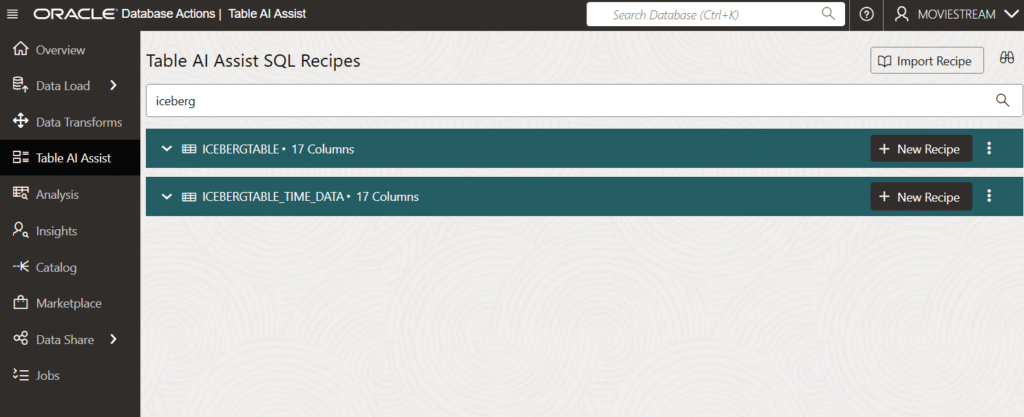
In Autonomous Database Actions, you can find the Table AI Assist. You can filter by table name. In this case I will filter by “iceberg” as I have a few tables called like this. Once I have the table, click on “New Recipe“.
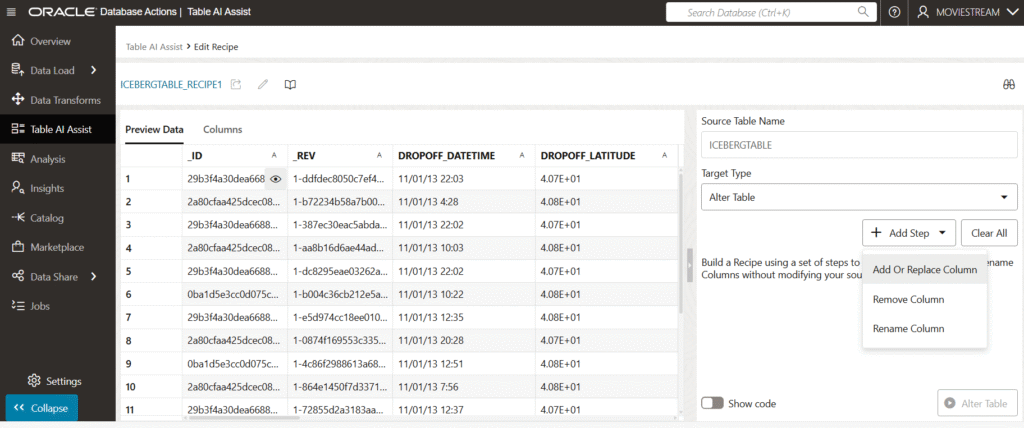
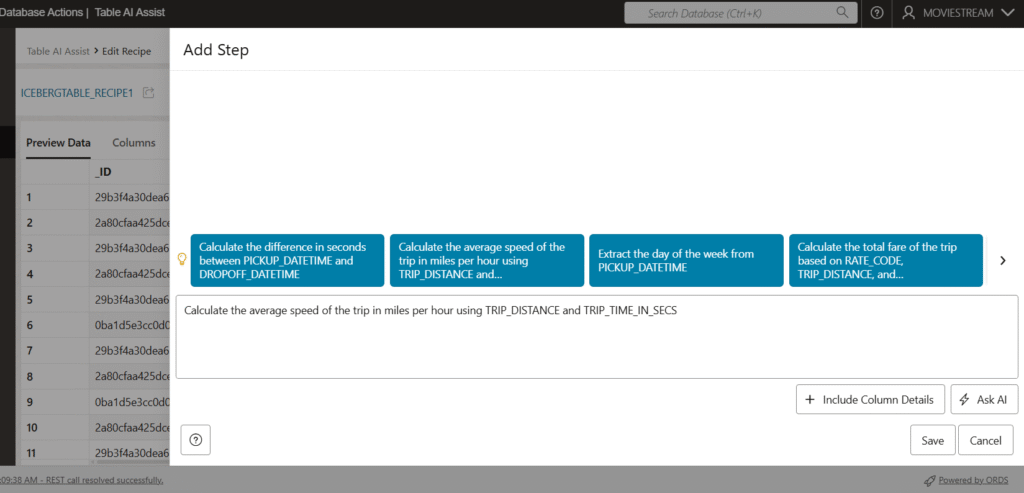
We can preview the table content. At the right we have the options we want to do. In this case we want to alter the table and Add or Replace a column in a new Step. (You can perform several steps for multiple modifications)
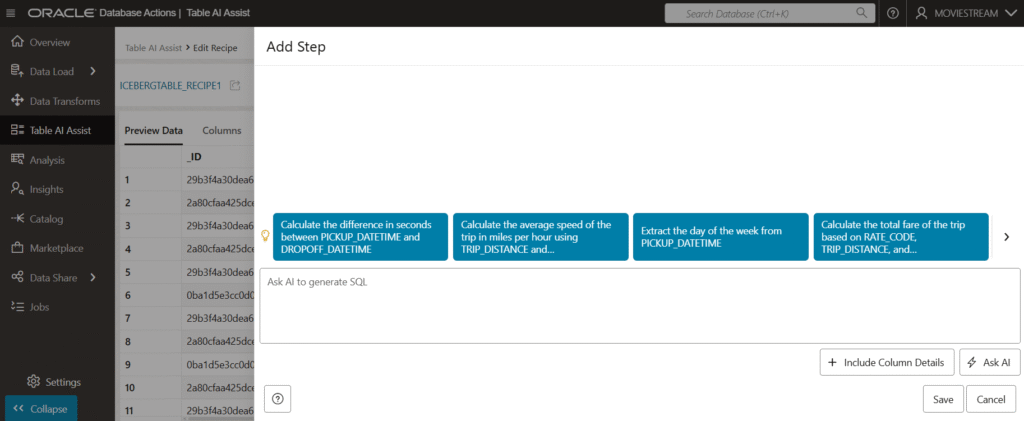
In blue, you have suggestions of possible modifications you can do. These suggestions are made by the AI. (You need to configure the AI profile in order to do the modifications and get the suggestions. Refer to my blog here to see how to do it.)
We are going to select one of the options suggested, to calculate the average speed. Click on “Ask AI“.
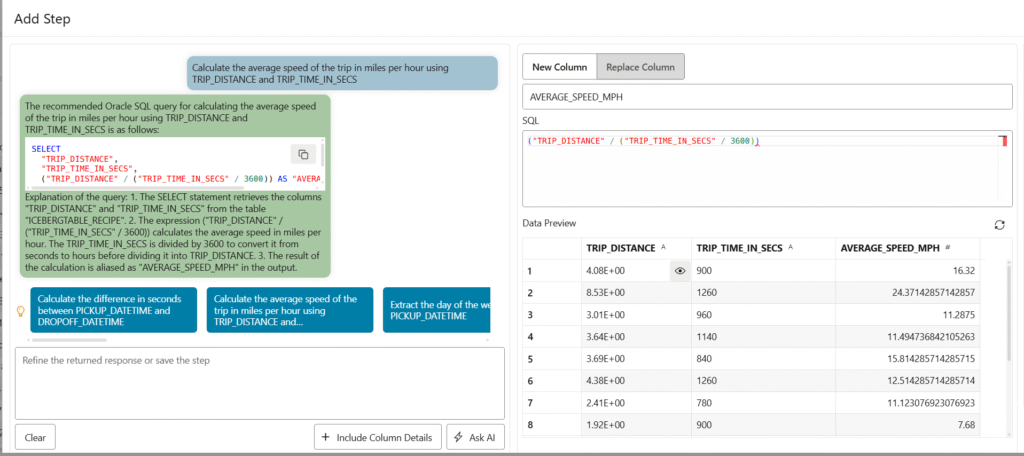
A new window will be shown. At the left you can have a conversation with your data, in this case with an Apache Iceberg table. On the right you can see the SQL generated and a preview of the modification.
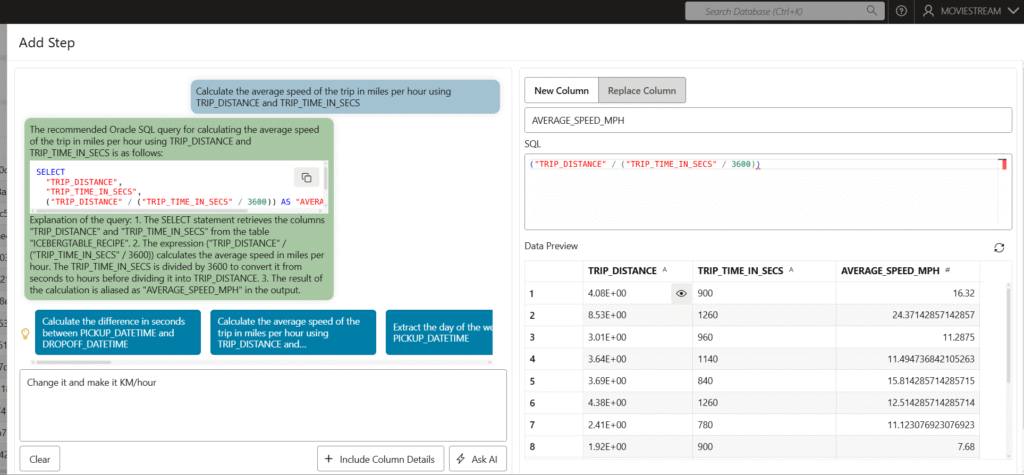
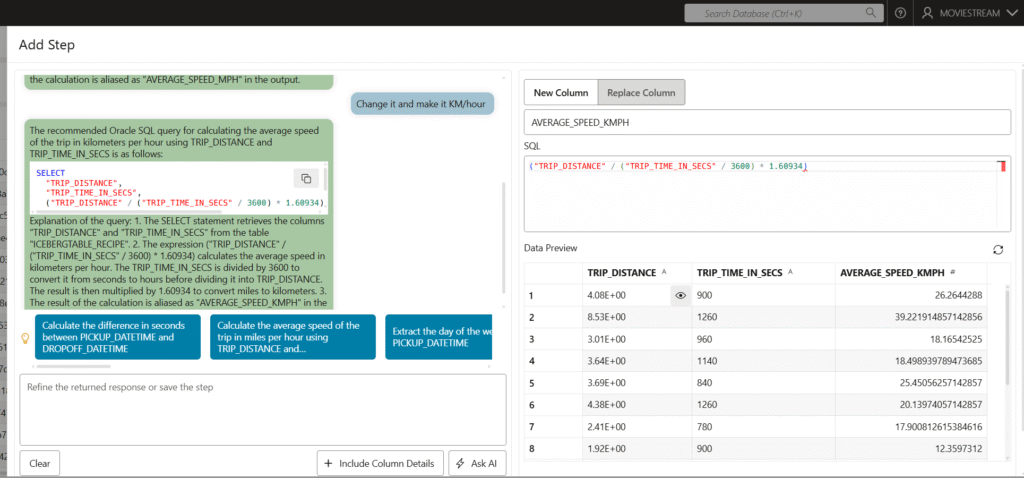
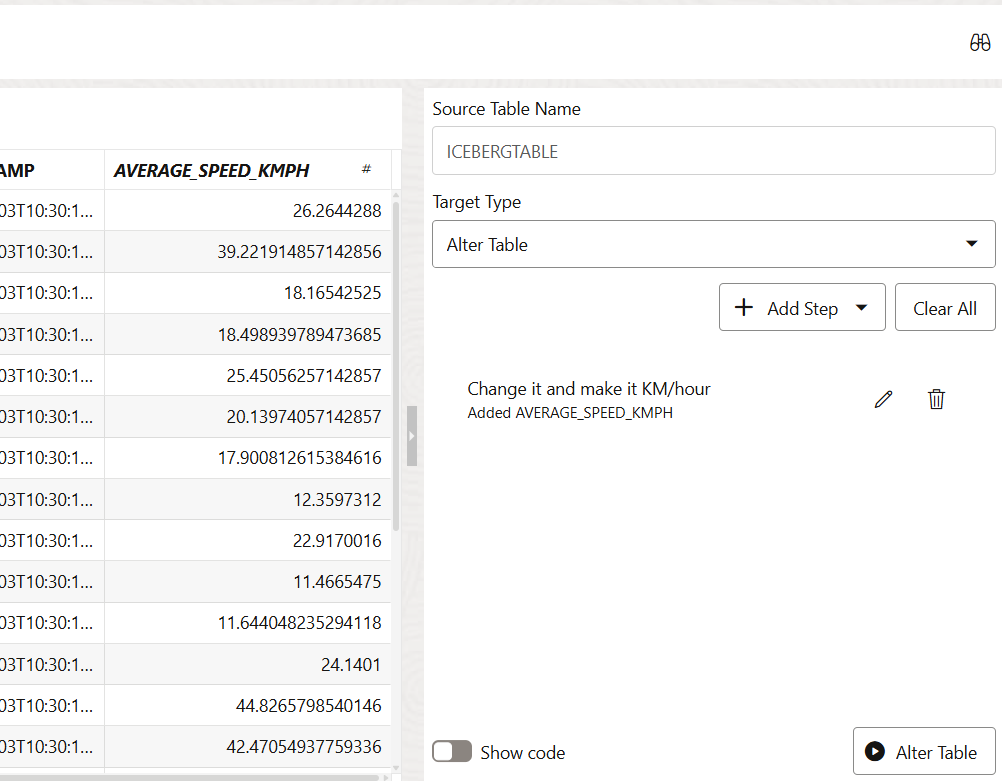
As we can have a conversation with the data, let’s change the miles per hour into KM per hour. Click on Ask AI again. We can keep chatting with the data until we get the result we want.
Here you can see that even it explains the SQL generated.
Once we are happy with the changes, click SAVE.
A list of changes will be shown. We can add more steps to run more modifications.
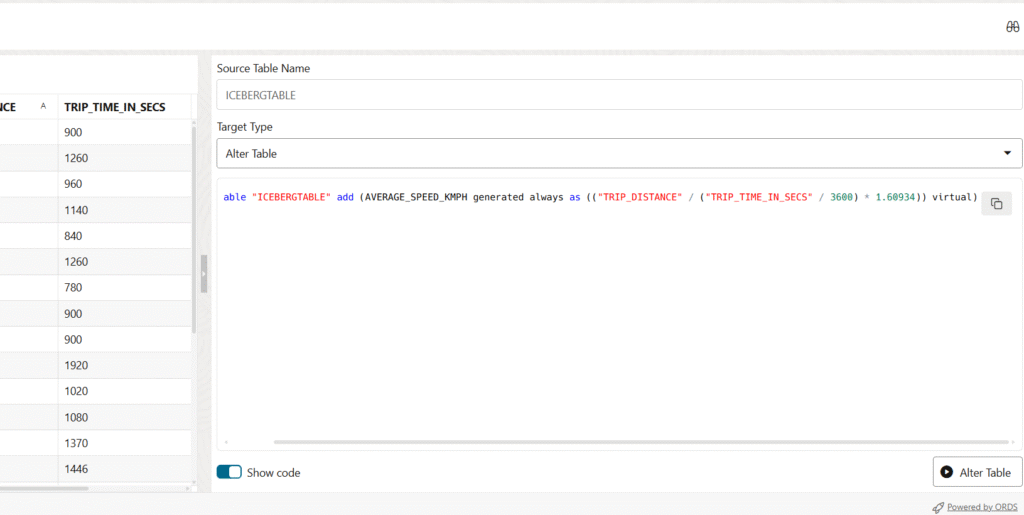
I’m sure the question you have now is: Are the modifications saved in Iceberg? What is happening under the covers? As everything running is SQL, you can click in “Show code” and see what is going on.
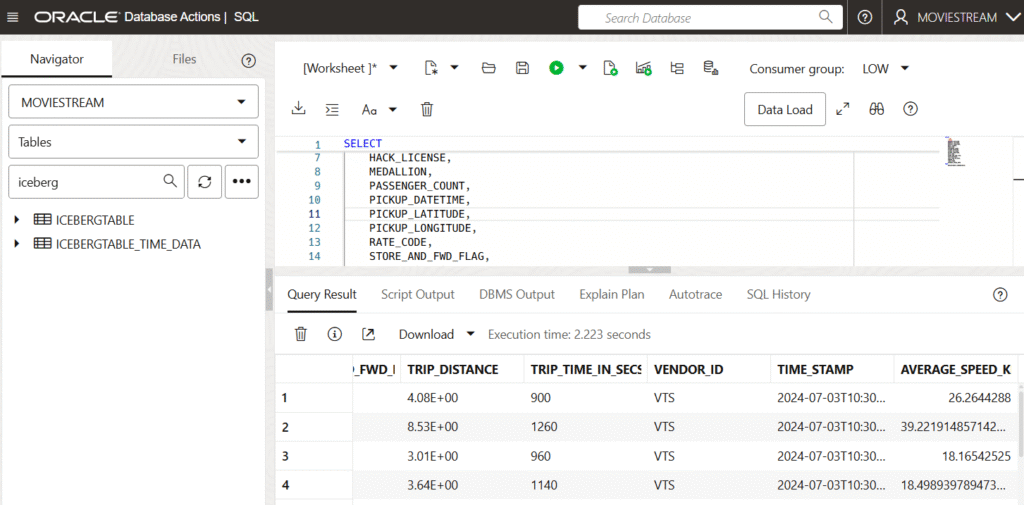
For the SQL generated, you can see that the new colum is virtual. No need for complex changes to get smarter insights. With virtual columns, you can define new metrics—like AVERAGE_SPEED_KMPH—without altering your Apache Iceberg data. They behave like regular columns in queries but don’t consume storage or impact the source. It’s a clean, efficient way to boost your analytics.
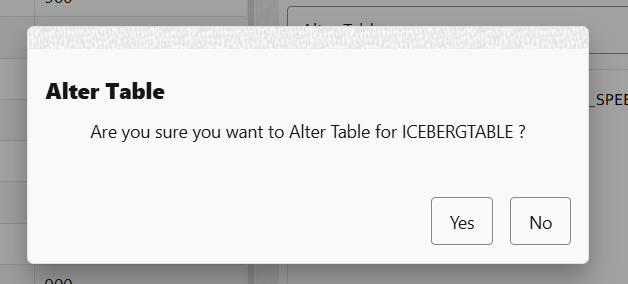
Now you can click on “Alter table”
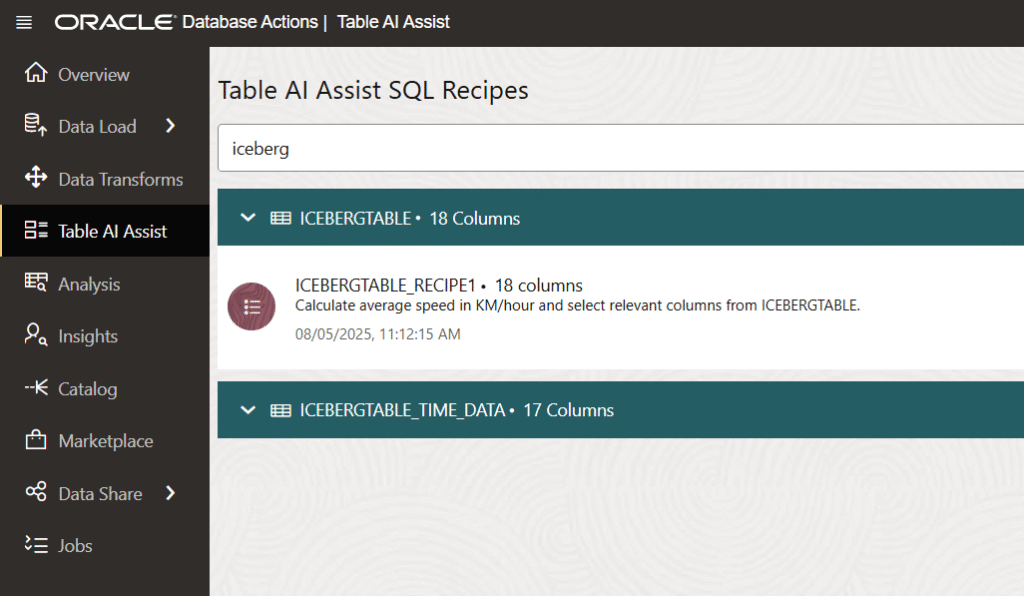
When we go back to the list of tables, we can see that the recipe is there. All the historical changes are placed here.
If we run a simple select all query, we can see that the virtual column is calculated in real-time and no modifications have been done in the Iceberg table.
Table AI Assist takes things to the next level by making your Iceberg data easier to explore and use—no deep SQL skills required. Just describe what you want in natural language, and it helps you create virtual columns, shape your data, or answer specific business questions. It’s a game changer for analysts and business users who want fast insights without waiting on data teams. With Table AI Assist, working with Iceberg feels a lot more intuitive—and a lot more productive.